Author Archives: Joe Stocker

Unable to find type [short] Set-OrganizationConfig -RejectDirectSend $true

If you don’t have a valid use of DirectSend in Exchange Online, Microsoft recommends that you disable it with this Exchange Online PowerShell cmdlet below. This is a follow-up post to our previous post “An improved approach to blocking Direct Send Abuse.”

Set-OrganizationConfig -RejectDirectSend $true

If you experience an error message “Unable to find type [short]” then it is likely related to your version of PowerShell.  TL;DR you need to upgrade to version 7.

Steps to Fix:

  1. Install PowerShell 7 (latest version recommended – 7.4.0 or later)
  2. Open PowerShell 7 (not Windows PowerShell)
    • Look for “PowerShell 7” in your Start menu
    • It will show “PS” instead of “Windows PowerShell” in the title bar
  3. Install/Update the Exchange Online Management module in PowerShell 7:
  4. Install-Module -Name ExchangeOnlineManagement -Force -Scope CurrentUser
  5. Connect to Exchange Online:
  6. Connect-ExchangeOnline
  7. Run your Set-OrganizationConfig command – it should work now!

Why This Happens

The type “uint” (and “short”) is not built into Windows PowerShell 5.1, but these types are available in PowerShell 7. When the Exchange Online Management module tries to use these types in its internal code, Windows PowerShell 5.1 can’t find them, resulting in the TypeNotFound error.

An improved approach to blocking Direct Send Abuse

Guest post By Chris Lehr

Executive Summary

If you are a Microsoft 365 customer and you are seeing an uptick of spam and phish emails sent to your domain, but also from your domain that seem to be getting past your filters, you will want to see if this issue applies to you and determine the best approach to preventing these from occurring.

Background

Direct Send was introduced initially as ONE of three ways you could migrate your SMTP traffic to M365. Direct Send was the one that was free and easy, you just point your copiers/scanners at your MX record and BOOP – there’s your email. Easy.

Well, it’s been around for 10+ years and lots of customers utilize it. In April 2025, Microsoft announced that they were releasing a way to disable it in your tenant, and the entire Internet seemed to say “Wait, was there an exploit there?” Microsoft stated in that article:

We are working on creating a report for Direct Send traffic that admins can use to get an overview of what traffic will be impacted.”

So, with the announcement of a way to block it and little revelation of how to audit this, those with malintent got right to it, and by mid-July 2025 attacks abusing Direct Send were on the rise. They all have the following hallmarks:

· Sender Domain and Recipient Domain are both your domains

· Failing SPF

· No DKIM signature

· Therefore, failing DMARC

There is an excellent writeup here at Varonis – one of the best writeups of the issue I’ve seen.

With attacks rising, Microsoft released a new blog entry on August 4th, 2025, and it has been edited, revoked temporarily and reposted due to confusion it caused. I hope to be helpful to Microsoft customers here and inclusive of all regardless of how you are configured.

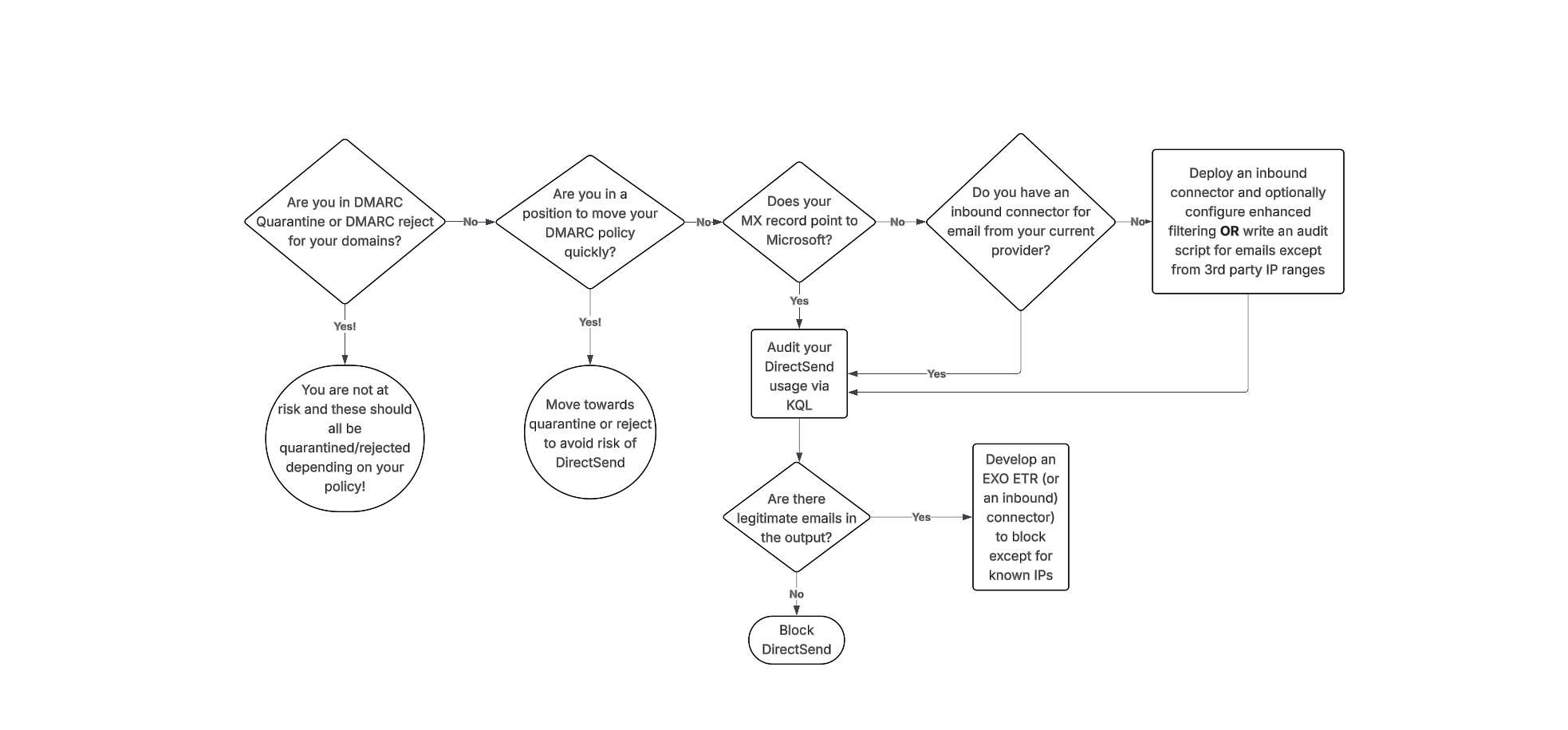
Here is a flowchart as well as a written list on how to audit and block these sort of attacks, regardless of your configuration!
DMARC advancement

The best way to avoid issues with Direct Send abuse is to move your domains to p=quarantine or p=reject. However, if you’re not familiar with DMARC, you should NOT simply change this value – doing so could drastically impact the deliverability of emails that are not SPF and DKIM aligned. If you’re already performing DMARC aggregation, have been at p=none, and are making progress on alignment efforts, you might be able to complete that arduous task to get to p=quarantine and be out of the way of this risk. It’s important to note that this is a complex task – it takes some customers MONTHS of alignment effort!

Additionally, if your domain is set to DMARC quarantine or reject, you still might be at risk if you have any EXO ETRs that are setting SCL -1 or if you are allow-listing via IPv4 in connection filter – both of which essentially bypass DMARC protections by automatically marking mail as safe.

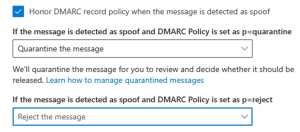
Keep in mind that in your tenant, you also would want these settings enabled for DMARC enforcement (from AntiPhishing policy Actions)
Auditing the Usage

For organizations wondering, “Are we seeing this threat/attack?” or “We saw one example, how many more are there?” – The Patriot team has collectively answered questions like these a LOT in the last couple of weeks and here is what we have developed to assist. Note, Explorer and KQL are MDO plan 2 benefits – Patriot HIGHLY recommends gaining access to these tools in general but being able to delve into your data like this is a solid reason to make it part of your budget soon.

If your MX points to Microsoft today, I recommend using this KQL:

EmailEvents
|where Timestamp > ago(30d)
| where EmailDirection == ‘Inbound’
| extend LeftPartSender = substring(SenderFromAddress, 0, indexof(SenderFromAddress, ‘@’))
| extend LeftPartRecipient = substring(RecipientEmailAddress, 0, indexof(RecipientEmailAddress, ‘@’))
| where LeftPartSender == LeftPartRecipient
| where isempty(Connectors) // not coming in on a connector
| where DeliveryLocation == ‘Inbox/folder’
| where parse_json(AuthenticationDetails) contains ‘fail’
| project Timestamp, RecipientEmailAddress, SenderFromAddress, Subject, NetworkMessageId, EmailDirection, Connectors, SenderIPv4

You may ask, why not just compare the sender and recipient domain name? In some cases, we have observed the sender domain using a MOERA which is a valid email alias whereas the recipient is their primary SMTP alias. We suspect this was done to evade the exact comparison, so we updated the query above to look for the alias matching on sender and recipient.

If your MX points to a 3rd party today, and you route email inbound to MSFT via an inbound connector, I recommend using this KQL (this is from the MSFT article)

EmailEvents
| where Timestamp > ago(30d)
| where EmailDirection == ‘Inbound’ and Connectors == ” and isnotempty(SenderIPv4) // not coming in on a connector (when you expect things to have used your 3rd party connector
| project Timestamp, RecipientEmailAddress, SenderFromAddress, Subject, NetworkMessageId, EmailDirection, Connectors, SenderIPv4

Now – if you are fortunate, you have no results and can opt to disable DirectSend! (skip down to that section!)

If you have data returned, you need to validate if they are legitimate or not. Obviously this can be subjective, but in most customer scenarios the expected traffic is coming from their datacenters/locations/known IPs. Collect the list of IPs that are needed to be allowed. If the content is too great to parse, feel free to add “| summarize count(by) SenderIPv4” to the end of either query.

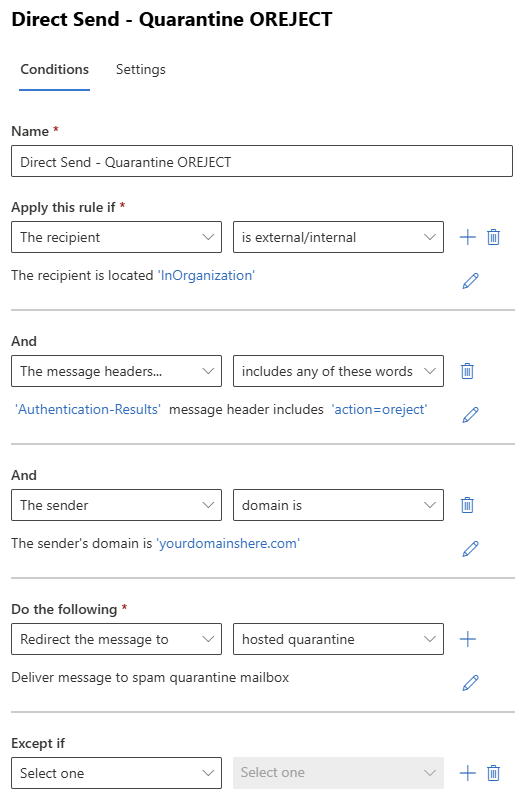
Blocking DirectSend with an EXO ETR

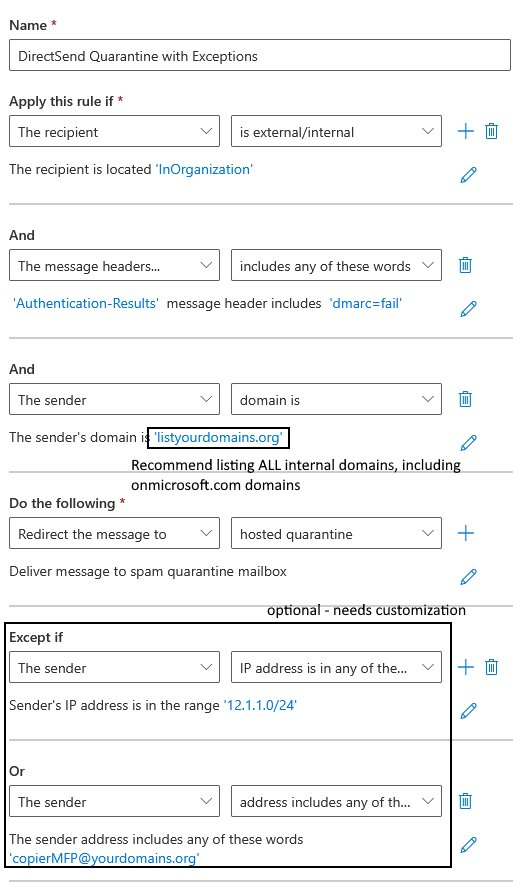
If you have audited the KQL output and have a list of sender IPs that are allowed, you can deploy an EXO ETR to block items from your domains that fail DMARC like this.

1) Make sure you add all your internal domains to this rule!

2) Make sure you add your IPs/Rangeshere as well!

3) Finally, DO NOT lead in with sending messages straight to quarantine – consider escalating from:

a. Prepend subject/body

b. Set SCL to 9 (to move to JMF/Quarantine with notification)

c. Redirect to hosted Quarantine

Update 8/20/2025 – based on customer feedback we excluded Message Type of Meetings from this rule, since Gmail tenants don’t pass SPF and DKIM for meeting acceptances.

Enable blocking DirectSend with an Inbound Connector

If you audit using KQL and find legitimate emails, collect the sending IP addresses and create an Inbound connector in EXO using these IPs as the source. Then once you confirm in Explorer that the connector is in use, you could proceed with blocking DirectSend.

Blocking DirectSend Completely

If your audit found no results, and you feel 30 days of data is sufficient to make the decision to turn off DirectSend, here is the command to disable DirectSend:

The EXO PowerShell command is:

Set-OrganizationConfig -RejectDirectSend $true
[UPDATE 9/10/2025]: If you experience an error message “Unable to find type [short]” then it is likely related to your version of PowerShell.  TL;DR you need to upgrade to PowerShell version 7. (Reference here)

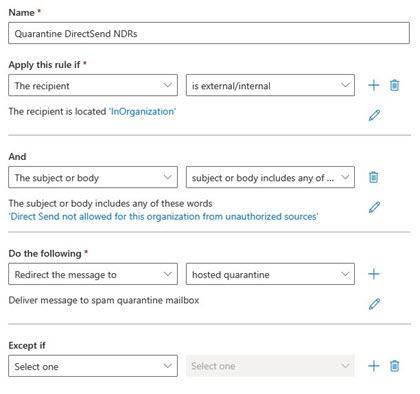
Once implemented, senders will get NDRs that state:

550 5.7.68 TenantInboundAttribution; Direct Send not allowed for this organization from unauthorized sources

Now, a new problem COULD appear after blocking – since one of the hallmarks here is sending to and from the user, your users could see this NDR. Annoying. If this occurs, here’s a simple EXO ETR to quarantine these confusing outcomes.

Sources:

· https://techcommunity.microsoft.com/blog/exchange/introducing-more-control-over-direct-send-in-exchange-online/4408790

· https://learn.microsoft.com/en-us/exchange/mail-flow-best-practices/how-to-set-up-a-multifunction-device-or-application-to-send-email-using-microsoft-365-or-office-365

· https://www.varonis.com/blog/direct-send-exploit

· https://techcommunity.microsoft.com/blog/exchange/direct-send-vs-sending-directly-to-an-exchange-online-tenant/4439865

· https://learn.microsoft.com/en-us/defender-office-365/anti-phishing-policies-about#spoof-protection-and-sender-dmarc-policies

Federating Identities between two MS365 Tenants for Collaboration

A customer asked me for guidance to federate identities between two Microsoft 365 organizations for the purpose of document collaboration. My approach was to start off with the Claude4 AI LLM then I incorporated input from OpenAI o3, Grok 3, and Gemini 2.5 Pro. At each step, I had Claude accept or reject input from the other models to create a superset documentation.  The result is a comprehensive step-by-step approach that will be useful for any organization. this end-to-end checklist establishes a cross-tenant trust limited exclusively to your partner organization, enabling secure document co-authoring and sharing in sharepoint online and onedrive while keeping external sharing blocked for all other organizations.

planning phase: define collaboration scope

before beginning technical configuration, clearly define:

  • users/groups: which specific users or security groups in each organization need collaboration access
  • resources: specific sharepoint sites, document libraries, or onedrive content to be shared
  • trust level: agreement on mfa trust, device compliance requirements, and automatic invitation redemption
  • permissions: minimum required access levels (view, edit, contribute) for each resource
  • timeline: expected duration of collaboration and review cycles
example: organization a will share project alpha sharepoint site with organization b’s Marketing team, while Organization B will provide read access to their Brand Guidelines library for Organization A’s design group.

prerequisites (verify in both tenants)

requirement why it matters
global administrator or security administrator role required to edit external identity settings and cross-tenant access policies
microsoft entra id p1/p2 & sharepoint online licenses essential for b2b collaboration features and spo external sharing capabilities
partner organization’s primary domain or Tenant ID you’ll need this exact identifier when adding the organization
sharepoint online management shell access required to enable b2b integration via powershell if not already configured
organizational approval for trust relationship ensure legal and compliance teams have approved the collaboration
cross-cloud compatibility verification confirm both organizations are in compatible microsoft clouds (commercial, gcc, etc.)
coordination between administrators critical: both organizations’ administrators must perform synchronized configuration steps
object ids for granular user control if restricting to specific users, you’ll need their Microsoft Entra Object IDs from the partner organization

administrator coordination checklist

critical: success requires synchronized configuration by administrators in both organizations. use this checklist to coordinate:
phase organization a tasks organization b tasks coordination point
planning define collaboration scope and required users define collaboration scope and required users share tenant ids, domain names, and object ids of users
configuration configure inbound access for org b configure outbound access for org a verify trust settings match on both sides
application setup configure applications org b users can access configure which applications org b users can use share specific application ids if using granular control
testing test guest invitation process test guest acceptance and access coordinate test scenarios and validate end-to-end flow
go-live monitor guest activity and access patterns train users on new collaboration process establish ongoing communication channels

phase 0: prepare sharepoint for b2b collaboration (critical foundation)

step 1: verify external sharing is disabled

objective: confirm external sharing is completely disabled to ensure all collaboration uses secure b2b trust mechanisms.

  1. access sharepoint admin center
    • microsoft 365 admin center → admin centerssharepoint
  2. verify current settings
    • navigate to policiessharing
    • under external sharing, confirm both sharepoint and onedrive are set to only people in your organization
    • if not already set, change to this most restrictive setting and click save
important: this ensures no “Anyone” links or untrusted guest sharing can bypass your b2b trust configuration.

step 2: enable microsoft entra b2b integration for sharepoint

objective: ensure sharepoint uses microsoft entra b2b for all external authentication.

  1. verify b2b integration status
    • in sharepoint admin center, check if b2b integration is already enabled
    • look for b2b-related settings under policiessharing
  2. check and enable b2b integration
    • connect to sharepoint online using powershell:
connect-sposervice -url https://[yourtenant]-admin.sharepoint.com

# first, check if b2b integration is already enabled
get-spotenant | select enableazureadb2bintegration

# if the result shows false, enable b2b integration
set-spotenant -enableazureadb2bintegration $true

# verify the setting was applied
get-spotenant | select enableazureadb2bintegration

change management: understanding user experience changes

important: enabling b2b integration changes how external sharing works for end users. communicate these changes to your user community:

  • before: users could create “Anyone” links that worked without authentication
  • after: all external sharing requires the recipient to have a guest account and authenticate
  • impact: external recipients will need to sign in with their work/personal microsoft account or create one
  • benefit: all external access is now tracked, auditable, and governed by your security policies
  • user action required: users should inform external recipients that they’ll need to authenticate when accessing shared content

plan for increased helpdesk tickets initially as users and external recipients adapt to the new authentication requirements.

result: sharepoint will now create proper b2b guest accounts in microsoft entra id for all sharing invitations.

step 3: review and update conditional access policies

objective: ensure existing conditional access policies don’t inadvertently block guest users or partner organization access.

  1. audit current policies
    • navigate to identityprotectionconditional access
    • review all enabled policies for potential guest user conflicts
    • look for policies that might block:
      • users from specific locations (if partner organization is in different geography)
      • unmanaged devices (if you haven’t enabled device trust)
      • users without organization-issued mfa
  2. create guest-specific policies (recommended)
    • create dedicated conditional access policy for directory roles = guest
    • grant access with conditions such as:
      • require multi-factor authentication (if not trusting partner mfa)
      • require approved client apps for accessing sharepoint/onedrive
      • exclude from policies that require organization-owned devices
  3. configure partner tenant-specific mfa requirements
    • if you want to enforce additional mfa for specific partner tenant:
policy name: "Partner Org - Require MFA"
users and groups: external users from [partner tenant id]
cloud apps: office 365 sharepoint online, office 365 exchange online
grant: require multi-factor authentication
  • this enforces your mfa requirements even if trusting their mfa for sso
  1. test policy impact
    • use what if tool in conditional access to simulate guest user scenarios
    • verify policies don’t create unintended access blocks
    • document any policy exclusions created for guest users

phase 1: configure cross-tenant trust (repeat in both tenants)

complete this entire section in organization a first, then repeat in organization b using the same steps but swapping the domain/tenant id.

step 1: add partner organization and configure trust

  1. navigate to cross-tenant settings
    • entra admin center → external identitiescross-tenant access settingsorganizational settings
  2. add partner organization
    • click + add organization
    • enter partner’s verified domain or tenant ID
    • click add
  3. configure inbound access (detailed)
    • click inbound access for the newly added organization
    • on the b2b collaboration tab:
      • choose customize settings
      • external users and groups:
        • access status: select allow access
        • applies to: choose your security model:
          • all external users and groups from partner organization (broad trust)
          • select external users and groups (granular control – requires object ids)

if selecting specific users, obtain their object ids from partner organization:

# partner organization runs this to get object ids:
connect-azuread
get-azureaduser -searchstring "[email protected]" | select objectid, displayname, userprincipalname
  • external applications:
    • access status: select allow access
    • applies to: choose your application scope:
      • all applications (broad access)
      • select applications (granular control):
        • add microsoft applications: select from common apps
        • key application ids for document collaboration:
          • office 365 sharepoint online: 00000003-0000-0ff1-ce00-000000000000
          • microsoft teams: 1fec8e78-bce4-4aaf-ab1b-5451cc387264
          • office 365 exchange online: 00000002-0000-0ff1-ce00-000000000000
        • add other applications: for custom or third-party apps
  1. configure outbound access (detailed)
    • click outbound access for the partner organization
    • on the b2b collaboration tab:
      • choose customize settings
      • users and groups:
        • access status: select allow access
        • applies to:
          • all users (allows all your users to be invited to partner organization)
          • select users and groups (restrict which of your users can be invited externally)
      • external applications:
        • access status: select allow access
        • applies to:
          • all external applications (your users can access any app they’re invited to)
          • select external applications (restrict which partner applications your users can access)
  2. enable trust settings
    • click the trust settings tab
    • enable trust multifactor authentication from microsoft entra tenants (reduces sign-in friction)
    • if using device-based conditional access, also enable:
      • trust compliant devices
      • trust hybrid azure ad joined devices
    • optional: enable automatically redeem invitations to skip consent prompts (requires partner to enable matching setting)
    • click save
result: each tenant now explicitly allows only the partner tenant’s identities; all other external tenants remain blocked.

important: understanding default vs. organizational settings

key concept: when general external sharing is disabled, your default settings in cross-tenant access settings likely block b2b collaboration for inbound and/or outbound access. by adding a specific organization and configuring allow access, you create an exception to your default block policy.

  • default settings apply to all external organizations
  • organizational settings override defaults for specific partner organizations
  • this design allows you to maintain strict security (default deny) while enabling targeted collaboration (organizational allow)

phase 2: configure directory-level guest invitation settings

step 2: enable guest invitations at directory level

  1. access external collaboration settings
    • external identitiesexternal collaboration settings
  2. configure guest user access (critical settings)
    • under guest invite settings, select based on your governance model:
      • recommended: member users and users assigned to specific admin roles can invite guest users including guests with member permissions
      • alternative: anyone in the organization can invite guest users including guests and non-admins (less restrictive)
      • restrictive: only users assigned to specific admin roles can invite guest users (admin-only invitations)
    • ensure guest invite restrictions is not set to “No one can invite guest users”
  3. set collaboration restrictions (domain-level control)
    • under collaboration restrictions:
      • recommended for targeted trust: allow invitations only to the specified domains → add partner organization domain (e.g., contoso.com)
      • alternative for flexibility: allow invitations to any domain (cross-tenant access settings still control organizational access)
    • important: even if you select “any domain” here, the cross-tenant access organizational settings provide more granular control over users and applications for trusted organizations
  4. settings hierarchy and precedence
    • most restrictive: external collaboration settings (tenant-wide)
    • more granular: cross-tenant access default settings
    • most specific: cross-tenant access organizational settings (takes precedence)
    • result: your organizational cross-tenant settings will override restrictions here for your trusted partner
note: these settings control who can send invitations and which domains can be invited, working in conjunction with the cross-tenant trust from step 1.

phase 3: restrict sharepoint and onedrive sharing

step 3: configure sharepoint/onedrive domain restrictions and site settings

organizational-level sharepoint configuration

  1. access sharepoint admin center
    • sharepoint admin center → policiessharing
  2. set organizational sharing level (critical for b2b guest access)
    • current requirement: if currently set to “Only people in your organization,” you must change this to enable b2b guests
    • recommended options:
      • existing guests (forces accounts to be pre-created via b2b invitation – more secure)
      • new and existing guests (allows ad-hoc sharing – more convenient)
    • important: the entra cross-tenant settings control which organizations can collaborate; sharepoint settings enable the capability for guest access
  3. configure domain restrictions (additional layer)
    • under domain restrictions for sharing, you can optionally:
      • select only allow sharing with specific domains → add partner domain
      • however: cross-tenant access settings provide more granular control over users and applications, making this secondary
    • recommendation: rely primarily on entra cross-tenant settings for domain control

site-level sharepoint configuration (per collaboration site)

for each sharepoint site that will host shared documents:

  1. access site sharing settings
    • navigate to the sharepoint site
    • settings (gear icon) → site permissionssite sharing
    • alternative path: site settingssite collection administrationsite collection featuressharing
  2. configure site-level permissions
    • ensure site sharing settings are not more restrictive than organizational settings
    • recommended: set to new and existing guests or existing guests
    • verify: site-level restrictions cannot be more permissive than organizational settings
  3. site permission groups for external users
    • create dedicated permission groups for external collaborators
    • example groups:
      • “Partner Org – Editors” (edit permissions)
      • “Partner Org – Viewers” (read permissions)
    • benefit: easier management of external user permissions

onedrive configuration

  1. onedrive sharing settings
    • in sharepoint admin center, configure onedrive sharing separately or inherit from sharepoint
    • recommendation: set to match sharepoint organizational settings
    • important: individual onedrive sharing must respect organizational limits
result: even if someone attempts to share with gmail.com or other domains, it will be blocked. only users from the trusted partner tenant can be invited.

phase 4: invite guest users and share resources

step 4: invite partner organization users as b2b guests

objective: add specific users from partner organization as b2b guests to enable document access.

individual user invitations (recommended for testing)

  1. add guest users via entra admin center
    • microsoft entra admin center → usersnew userinvite external user
    • enter partner user’s email address (e.g., [email protected])
    • optional: assign to specific groups or applications during invitation
    • add personal message explaining the collaboration purpose
    • click invite
  2. guest acceptance process
    • partner user receives invitation email with redemption link
    • user clicks accept invitation and signs in with home organization credentials
    • due to trust settings, mfa from home organization is honored (no re-authentication required)

bulk user invitations (for larger collaborations)

for inviting multiple users simultaneously:

  1. powershell bulk invitation
# install required modules
install-module azuread
connect-azuread

# import csv with partner user emails
$users = import-csv "C:\path\to\partner-users.csv"

foreach ($user in $users) {
    new-azureadmsinvitation -inviteduseremailaddress $user.email -inviteredirecturl "https://portal.azure.com" -sendinvitationmessage $true
}
  1. csv format example
email,displayname
[email protected],john smith
[email protected],jane doe
  1. azure ad b2b invitation manager tool
    • use microsoft’s bulk invitation templates
    • upload csv file through azure portal under external identitiesguest usersbulk invite

cross-tenant synchronization (m&a scenarios)

for mergers, acquisitions, or deep partnerships requiring ongoing user synchronization:

  1. cross-tenant synchronization setup
    • identityexternal identitiescross-tenant synchronization
    • configure automatic user provisioning between tenants
    • map user attributes and group memberships
    • set up deprovisioning rules for when users leave
  2. benefits of cross-tenant sync
    • automatic user lifecycle management
    • real-time updates when users are added/removed
    • maintains group memberships across tenants
    • suitable for long-term organizational relationships
  3. license requirements
    • microsoft entra id p1 licenses required for both tenants
    • additional licensing may be required based on synchronized user count

self-service access via entitlement management

license requirements: microsoft entra id p2 or enterprise mobility + security e5 licenses required for entitlement management features.
  1. configure access packages
    • identity governanceentitlement managementaccess packages
    • create package containing required sharepoint sites, groups, or applications
    • set up approval workflows if required
    • configure access review schedules
  2. external user self-service
    • allow partner users to request access directly via myaccess portal
    • automatic approval based on partner organization domain
    • time-limited access with automatic expiration
  3. benefits
    • reduces administrative overhead
    • provides audit trail of access requests
    • automatic access reviews and cleanup

step 5: share documents and sites

objective: grant specific access to sharepoint resources for guest users.

  1. share sharepoint sites
    • navigate to target sharepoint site
    • click sharesite accessinvite people
    • add guest user (appears as user_partnerorg.com#ext#@yourtenant.com)
    • assign appropriate permissions:
      • edit: for active collaboration and co-authoring
      • view: for read-only access to documents
      • contribute: for adding content but not changing site structure
    • click add
  2. share individual documents/folders
    • in sharepoint or onedrive, select document/folder
    • click sharepeople you specify
    • add guest user email or select from directory
    • set permission level and expiration date if needed
    • add message and click send
  3. verify guest access
    • guest users can access shared resources directly via sharepoint urls
    • no additional “Anyone” links needed since external sharing is disabled
    • all access is tracked and auditable through b2b guest accounts

phase 5: create dedicated collaboration workspace (optional but recommended)

step 4: set up dedicated collaboration space

  1. create team or sharepoint site
    • in the tenant that will host primary content, create:
      • microsoft teams team for ongoing collaboration, or
      • sharepoint site collection for document-focused work
  2. add partner tenant users
    • for teams: teams → manage teamadd member → enter guest upn (e.g., [email protected])
    • for sharepoint: site → share → enter guest email → set appropriate permissions
  3. guest acceptance process
    • partner users receive invitation email
    • they sign in using their home organization credentials
    • mfa is honored through the established trust (no additional prompts)

phase 6: validation and testing

step 5: comprehensive end-to-end testing

technical validation tests

test scenario performer expected result validation points
cross-tenant authentication partner user seamless sign-in with trusted mfa no additional mfa prompts, smooth sso
document co-authoring both organizations real-time editing in word/excel/powerpoint simultaneous editing, version tracking
untrusted domain blocking any user “Your organization doesn’t allow sharing with this domain” error confirms domain restrictions working
guest directory lookup host organization partner users appear in search when sharing directory integration functioning
application access scope partner user access only to configured applications proper application-level restrictions

detailed user experience walkthrough

phase 1: invitation process (host organization)

  1. initiating invitation
    • user navigates to sharepoint document/site
    • clicks sharepeople you specify
    • enters partner user email (e.g., [email protected])
    • sets permission level and adds message
    • clicks send
  2. system processing
    • microsoft entra validates partner organization against cross-tenant access settings
    • b2b invitation email is generated and sent
    • guest account is created in host tenant directory

phase 2: invitation acceptance (partner organization)

  1. email reception
    • partner user receives email titled “You’re invited to access applications at [Host Organization]”
    • email contains accept invitation button and access instructions
  2. invitation redemption
    • user clicks accept invitation
    • redirected to microsoft sign-in page
    • critical: user signs in with their home organization credentials (not a new account)
    • trust settings ensure home organization mfa is honored
  3. first access experience
    • user may see brief “Setting up your account” message
    • redirected to originally shared resource
    • future access uses seamless sso

phase 3: ongoing collaboration

  1. document access
    • partner user can bookmark sharepoint sites for easy access
    • appears in user’s “Recent” and “Shared with me” views
    • real-time co-authoring works immediately
  2. permissions and limitations
    • user can only access resources explicitly shared with them
    • cannot browse tenant directory or access other sites
    • governed by assigned permission levels (view, edit, contribute)

step 6: monitor initial usage

  1. review sign-in logs
    • entra admin center → monitoring & healthsign-in logs
    • filter by cross-tenant access type to monitor external user activities
    • look for authentication failures or unusual patterns
  2. verify trust settings working
    • confirm partner users aren’t prompted for additional MFA
    • validate device trust is functioning (if enabled)
    • check that sessions are seamless between applications
  3. monitor guest activity
    • audit logs to track guest user invitations and redemptions
    • sharepoint audit logs for document access and sharing activities
    • set up alerts for suspicious cross-tenant activities

phase 7: security hardening and ongoing management

step 7: implement additional security controls

  1. conditional access for guests
    • create conditional access policy scoped to directory roles = guest
    • enforce additional controls if trust settings aren’t sufficient
    • consider location-based restrictions if needed
  2. regular access reviews
    • identity governanceaccess reviews
    • set up quarterly reviews of guest user access
    • automate removal of inactive guest accounts (recommend 90-day threshold)
  3. monitoring and alerting
    • set up alerts for unusual external user activity
    • monitor for failed cross-tenant authentication attempts
    • track document sharing patterns for anomalies

step 8: establish governance framework

  1. user training and guidelines
    • train users on proper external sharing procedures
    • provide clear guidelines for document classification before sharing
    • establish escalation procedures for access issues
  2. regular policy reviews
    • quarterly review of cross-tenant access settings
    • annual assessment of trust relationship necessity
    • update policies based on security landscape changes
  3. documentation and compliance
    • document the business justification for the trust relationship
    • maintain audit trail of configuration changes
    • ensure compliance with data governance policies

step 9: collaboration lifecycle management

  1. regular maintenance
    • quarterly review of cross-tenant access settings
    • monitor guest account usage and remove inactive accounts
    • update trust relationships based on changing business needs
  2. end collaboration process
    • when collaboration ends, remove partner organization from cross-tenant access settings
    • revoke all guest account access immediately
    • remove shared content or transfer ownership as appropriate
    • document the closure for audit purposes
  3. emergency procedures
    • have procedures ready for immediate trust relationship suspension
    • know how to quickly revoke all external access if security incident occurs
    • maintain incident response contact information for partner organization

advanced collaboration options and special considerations

microsoft teams shared channels alternative

for teams-focused collaboration, consider b2b direct connect instead of traditional b2b collaboration:

  1. configure b2b direct connect
    • in cross-tenant access settings, configure b2b direct connect instead of b2b collaboration
    • this allows shared channels without creating guest accounts
    • users collaborate using their home organization identities
  2. benefits of direct connect
    • no guest account lifecycle management required
    • users maintain full home organization identity and compliance
    • seamless teams experience with shared channels

cross-cloud scenarios

if organizations are in different microsoft clouds (e.g., commercial vs. gcc vs. gcc high):

  1. enable cross-cloud settings
    • navigate to cross-tenant access settingsmicrosoft cloud settings
    • configure appropriate cloud-to-cloud trust relationships
    • verify compliance requirements for cross-cloud data sharing
  2. verify compatibility
    • confirm both clouds support the required b2b features
    • check any regulatory restrictions on cross-cloud collaboration

enhanced security measures

  1. implement sensitivity labels
    • apply microsoft purview sensitivity labels to documents before sharing
    • configure label policies to automatically protect sensitive content
    • restrict external sharing based on sensitivity classification
  2. data loss prevention (dlp)
    • create dlp policies specifically for cross-tenant sharing
    • monitor and block inappropriate external sharing of sensitive data
    • set up alerts for policy violations
  3. guest account lifecycle management
    • implement automatic guest account expiration (30-90 days recommended)
    • use identity governanceaccess reviews for periodic review
    • set up automated removal of inactive guest accounts
  4. conditional access for guests
    • create dedicated conditional access policies for directory roles = guest
    • enforce additional security controls for external users
    • consider location-based restrictions or specific device requirements

troubleshooting common issues

issue likely cause solution
guest invitations not received email security filtering check spam folders; whitelist partner domain in email security
“Access denied” errors mismatched trust configurations verify both organizations have identical trust settings configured
mfa re-prompting for guests trust settings not enabled confirm “Trust multifactor authentication” is enabled in both tenants
cannot find users when sharing directory sync issues verify guest users have been properly provisioned in target tenant
document co-authoring failures application permissions missing ensure office 365 apps are included in cross-tenant access settings

security considerations summary

  • principle of least privilege: only enable trust for applications and user groups that require collaboration
  • data classification: implement sensitivity labels before enabling cross-tenant sharing
  • legal and compliance: ensure trust relationship complies with data residency and privacy regulations
  • regular auditing: implement continuous monitoring of cross-tenant activities
  • incident response: have procedures ready for potential security incidents involving external users

technical reference: application ids and object ids

common microsoft application ids for cross-tenant access

when configuring granular application access, use these microsoft application ids:

application application id purpose
office 365 sharepoint online 00000003-0000-0ff1-ce00-000000000000 document collaboration, sites, lists
microsoft teams 1fec8e78-bce4-4aaf-ab1b-5451cc387264 teams chat, meetings, shared channels
office 365 exchange online 00000002-0000-0ff1-ce00-000000000000 email, calendar, contacts
microsoft graph 00000003-0000-0000-c000-000000000000 api access for integrated applications
office 365 management apis c5393580-f805-4401-95e8-94b7a6ef2fc2 administrative and compliance apis

finding additional application ids

# connect to microsoft graph powershell
connect-mggraph -scopes "Application.Read.All"

# list all service principals (applications) in your tenant
get-mgserviceprincipal | select displayname, appid | sort-object displayname

# find specific application by name
get-mgserviceprincipal -filter "displayName eq 'SharePoint'" | select displayname, appid

obtaining user object ids for granular control

in partner organization (to share with host organization):

# connect to azure ad
connect-azuread

# get object id for specific user
get-azureaduser -searchstring "[email protected]" | select objectid, displayname, userprincipalname

# get object ids for group members
get-azureadgroupmember -objectid "group-object-id" | select objectid, displayname, userprincipalname

# export to csv for sharing with partner
get-azureaduser -filter "department eq 'Marketing'" | select objectid, displayname, userprincipalname | export-csv -path "partner-users.csv"

conclusion

this configuration creates a secure, well-governed collaboration tunnel between two microsoft entra organizations while maintaining complete lockdown of external sharing for all other domains. the trust relationship enables seamless document collaboration without compromising your organization’s security posture.

you’re done! These steps keep external sharing completely off for the rest of the world while creating a well-governed trust tunnel between the two Microsoft Entra organizations, letting staff collaborate on documents without compromising your existing lockdown posture.

The Clock is Ticking on Windows 10: Are You Intune with What Comes Next?

By Joe Stocker, Founder & Microsoft Security MVP, Patriot Consulting

Windows 10 support officially ends on October 14, 2025. And while your devices won’t suddenly stop working, the protection behind them will. No more security updates. No feature enhancements. No Microsoft support.

For organizations not actively planning their migration, that means serious exposure to risk. The good news? There’s still time, and a better way to get ahead of it.

At Patriot, we’ve helped hundreds of businesses plan and deliver secure, scalable upgrades to Windows 11 using Microsoft Intune. And if you’re still relying on traditional endpoint management, now is the moment to modernize.

In our recent executive webinar, our Endpoint Practice Manager Kevin Vanover shared practical guidance in a 20-minute strategic walkthrough. Watch it (here)

Here’s what you need to know:

1. What Happens When Windows 10 Reaches End of Life?

Your devices won’t shut down, but they will be vulnerable. After October 14, they’ll stop receiving updates and technical support. That puts your business at risk of breaches, noncompliance, and operational headaches.

Yes, Microsoft offers Extended Security Updates (ESUs), but they’re $61 per device per year and capped at three years. It’s a short-term patch, not a long-term plan.

2. Microsoft Intune Is the Smartest Way to Get There

Microsoft Intune isn’t just about patching, it’s your control center for secure, scalable endpoint management. With it, you can:

  • Collect device readiness and compatibility data
  • Set deployment and health monitoring policies
  • Track upgrade progress across all devices
  • Troubleshoot upgrade failures in real time

Already licensed for Microsoft 365 E3 or E5? You likely have access to all the Intune functionality you need, it’s just a matter of using it correctly.

3. You Might Already Have Compatibility Issues – Intune Will Tell You

Through detailed readiness and compatibility reports, Intune can flag:

  • Devices that don’t meet Windows 11 requirements
  • Applications and drivers that will break post-upgrade
  • Wi-Fi protocols blocked by Credential Guard

We’ve seen businesses caught off guard by default settings like Credential Guard preventing devices from connecting to Wi-Fi. Intune helps you spot issues early and fix them fast.

4. You Can Monitor Progress in Real Time

Deployment success shouldn’t be a mystery. With Intune, you’ll see:

  • Which devices are compliant
  • Where upgrades are stalled
  • Why errors are occurring and how to fix them

This turns your migration into a managed, visible project, not a black box of unknowns.

5. It’s Not Too Late… But You Need to Start Now

The longer you wait, the more complex your migration becomes. Hardware replacement cycles, compatibility blockers, and shadow IT all take time to resolve.

Want the full breakdown?
Watch our 20-minute executive demo for a step-by-step view of how Intune helps you plan, execute, and monitor your Windows 11 rollout.
https://patriotconsulting.eventbuilder.com/event/91385

Let’s Talk About Your Readiness

We’re offering a free 1-hour session with either myself or our Endpoint Practice Manager Kevin Vanover. We’ll review your current posture and help build a roadmap tailored to your environment.

Book your session now: [email protected]
Ask about a free copy of my book, Securing Microsoft 365

Microsoft vs Proofpoint

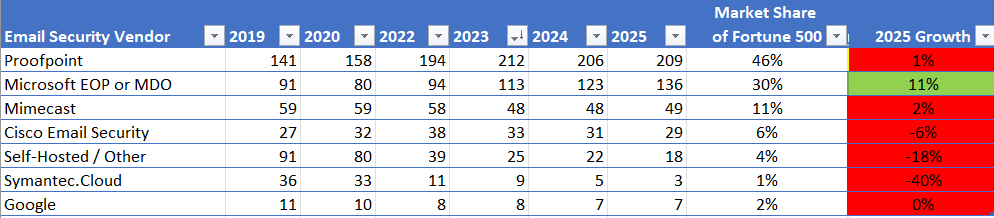
Microsoft Email Security picks up 13 new Fortune 500 companies in the past 10 months, growing at 11%.  Between Microsoft and Proofpoint, they have captured 76% of the email security market.

image

Source: Public DNS MX Records

Microsoft Defender for Office 365 now uses purpose-built Large Language Models (LLM) at scale to provide AI-powered email and collaboration security. The solution parses language to understand and identify attacker intent and classifies threats at machine speed.

Microsoft is reporting 99.995% attacker intent detection accuracy and filtering, and is blocking 140,000 Business Email Compromise per day, based on the new LLM model. Source: https://techcommunity.microsoft.com/blog/microsoftdefenderforoffice365blog/microsoft-ignite-redefining-email-security-with-llms-to-tackle-a-new-era-of-soci/4302421

At Patriot, we migrated over 40 companies from Proofpoint and Mimecast to Microsoft Defender for Office in the last 12 months. The average migration takes about 90 days, because our process involves a careful examination of the customer configuration to make sure that the migration goes smoothly without a hitch. Contact our account team for a quote and a free detailed comparison between Proofpoint or Mimecast to Microsoft (hello AT patriotconsultingtech.com)

Migrating from OKTA to Microsoft Entra can pay for the entire XDR Suite

When I meet customers using OKTA as their Identity and Access Management, the following three questions often come up: (1) is Microsoft as good or better? (2) Can I save money by consolidating to Microsoft? and (3) How long does the migration take?

Is Microsoft as good or better than OKTA? Yes.

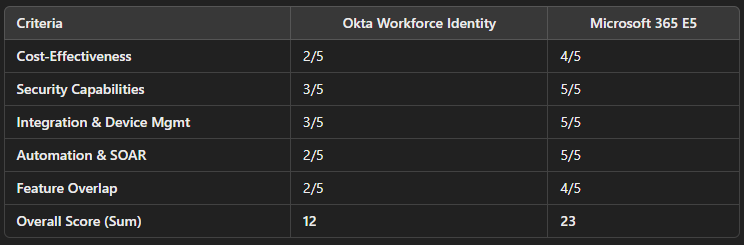
The table below summarizes the evaluation with a scoring system (1 = Poor, 5 = Excellent) for each criterion. All criteria are equally weighted. Each score is justified by the underlying capabilities and considerations discussed in subsequent sections.

image

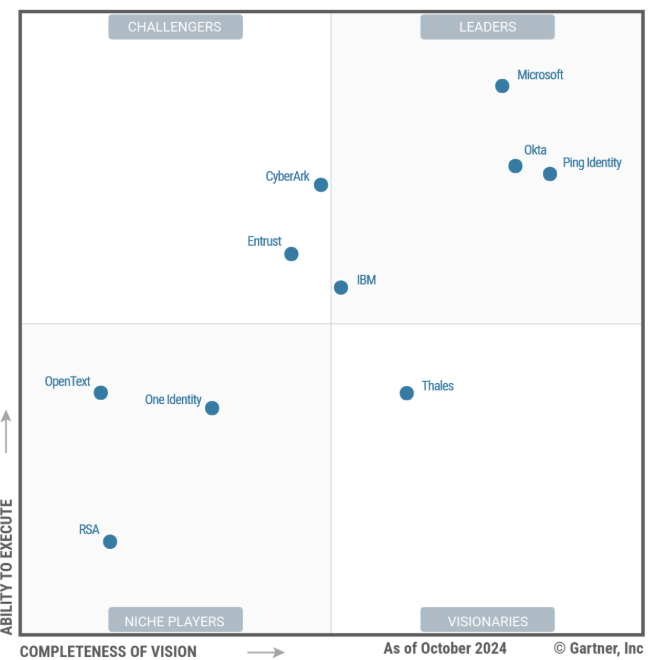
Gartner ranks Microsoft as the vendor with the highest ability to execute features:
image

(source)

Can I save money by consolidating to Microsoft? Yes.

Okta’s identity services are an additional expense on top of Microsoft 365. For example, Okta charges roughly $2/user/month for basic SSO, plus $3/user for basic MFA; the adaptive security versions are about $5 and $6 respectively​ (source pathlock.com)

This means a full Okta SSO + adaptive MFA solution can cost $11 per user. In contrast, the entire M365 E5 Security bundle is $12/user as an add-on to M365 E3, but you get the full XDR Stack! (EDR, CASB, Email Security, all in a single unified console!) (source infusedinnovations.com)

For instance, one study found a 77% cost savings for a 5,000-user organization using M365 E3 + E5 Security compared to a mix of CrowdStrike, Okta, and Proofpoint for equivalent security coverage (source).

How long does the migration take? Not as long as you think.

How many apps do you have? Divide that by 10, and that is roughly the number of weeks it can take to migrate from OKTA to Microsoft. We have a special tool that Microsoft has provided us to streamline the migration effort, which can help us move even faster. We also qualify for Microsoft funding programs that can pay our consultants to do the work for you.

Security Considerations

Identity Protection & Risk Detection: Both Okta and Microsoft Entra ID provide risk-based authentication, but Microsoft’s capabilities are significantly more extensive. Microsoft Entra ID Protection has 28 built-in risk detection types (such as unfamiliar sign-in properties, impossible travel, leaked credentials, etc.), leveraging Microsoft’s vast telemetry (trillions of signals) and machine learning to assess user/sign-in risk. By contrast, Okta’s risk engine is less transparent about the number of detection signals – it primarily evaluates behavioral anomalies or IP-based reputation. Okta does offer adaptive MFA based on risk scores (e.g. network, device, location contexts) and can integrate with partner tools for enhanced threat signals, but it doesn’t natively match the breadth of Microsoft’s global threat intelligence which handles 78 trillion signals per day. In practice, Microsoft Entra Identity Protection will flag more diverse risk events automatically, while Okta requires additional effort and cost to pull in external partner signals. 

Extended Detection & Response (XDR): Microsoft 365 E5 includes the Microsoft 365 Defender XDR suite, which goes far beyond identity. This suite covers: Defender for Endpoint (EDR), Defender for Identity (monitoring on-prem AD for threats), Defender for Office 365 (email and collaboration threat protection), and Defender for Cloud Apps (SaaS Security)​.

These tools work together to correlate threats across domains (identity, devices, email, cloud). Okta does not provide endpoint or email security – it would rely on third-party XDR solutions for those. In other words, with E5 you get an integrated XDR that can identify, for example, a malware-infected device and automatically prevent that device’s user from accessing corporate apps, something Okta alone cannot do. Okta’s contribution to security is mainly identity-centric (preventing unauthorized access via SSO/MFA and de-provisioning access quickly), but it doesn’t monitor for malware, phishing, or lateral attack patterns. The Defender XDR capabilities in E5 significantly bolster an organization’s security posture beyond authentication alone.

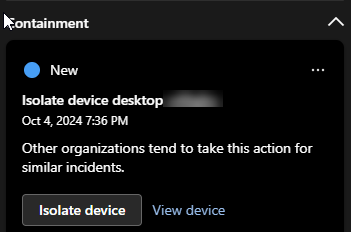
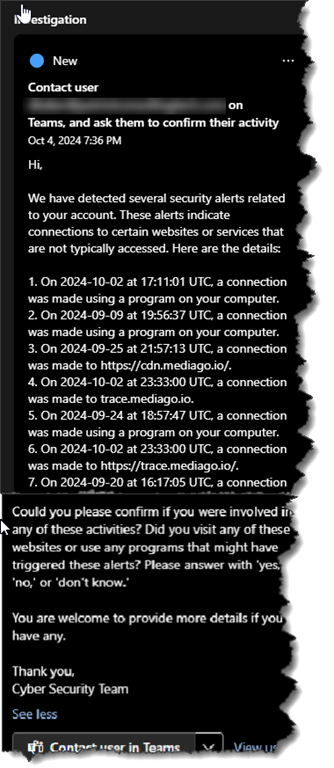
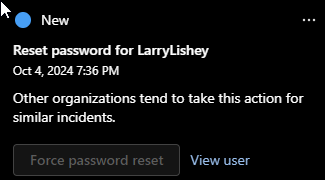
Automated Attack Disruption: Because Microsoft’s tools cover multiple attack vectors, they can also coordinate automated responses. Microsoft’s Automatic Attack Disruption feature (in preview/ignite 2024 announcements) is designed to contain active attacks in real-time by isolating compromised identities or devices across the ecosystem. For instance, if a user account is suspected to be compromised as part of a ransomware attack, the system can automatically suspend the account and isolate the device to stop the attacker’s progress. Okta’s platform, on its own, can lock an account after detecting anomalous behavior (zero-trust approach to suspicious logins​), but it lacks the device-side response. It cannot quarantine a machine or cut off email phishing internally – those would require separate solutions. Thus, Microsoft E5 provides a more comprehensive active defense, automatically disrupting attacks across identity and devices, whereas Okta’s response is limited to identity containment (which, while important, addresses only one piece of an active threat).

Security Copilot (AI-Assisted Security): Microsoft has introduced Security Copilot, an AI-driven assistant for security analysts (available to customers of the Microsoft security stack for an additional fee). This tool uses generative AI on top of the aggregated data from Microsoft’s XDR and SIEM, helping to summarize incidents, suggest remediation, and even craft KQL queries. Okta currently has no equivalent AI security assistant. (Okta has begun integrating AI for threat protection in specific ways, but nothing like a broad incident copilot.) This means organizations on E5 can leverage cutting-edge AI to accelerate threat investigations and response, a capability missing from Okta’s offering.

Device Management (Intune vs. Okta): Microsoft 365 E5 (and E3) includes Microsoft Intune (part of Microsoft Endpoint Manager) for mobile device and PC management. Intune is tightly integrated with Windows – Windows 10/11 devices can be Azure AD joined and automatically enrolled in Intune without needing any third-party agent. Intune also manages iOS, Android, and macOS devices using native OS management frameworks. This means policy enforcement (like requiring compliant devices for access) works end-to-end with Azure AD Conditional Access. By contrast, Okta’s device management capabilities are limited. Okta did offer Okta Mobility Management (OMM), but that product has been end-of-lifed as of 2023 (Okta now encourages integrating with other MDMs like Intune, MobileIron, etc., for device compliance)​

Okta’s current approach to device security is via Device Trust – ensuring that only devices managed by a trusted MDM or with Okta Verify can access certain apps. This still requires a separate device management solution (such as Intune itself or another MDM) to actually manage the device’s health and compliance. Also, for desktop devices, Okta’s device trust often requires installing an agent or certificate on the device to validate it, whereas Intune management is part of the OS onboarding. The key takeaway: Intune (with M365) provides a full-fledged, integrated device management and is built into Windows, whereas Okta alone cannot manage devices and must be paired with an MDM – introducing additional complexity and cost if one isn’t already in place. In our scoring, Microsoft gets full marks for integration largely due to Intune’s presence and the Windows integration, plus things like Windows Hello and Azure AD Join which create a smooth authentication experience. Okta, while it can integrate with Intune and even automate some device context via its APIs, is not an out-of-the-box device management solution.

Need help? We can move the first few apps and train your team how to move the rest! Contact us at Hello At PatriotConsultingTech.com

Mitigating AiTM Token Theft in 2025: Why It’s Time to Adopt Passkeys

Mitigating MiTM Token Theft in 2025: Why It’s Time to Adopt Passkeys

Introduction: Rising Threat of Token Theft Attacks

Adversary-in-the-middle (AiTM) phishing attacks have evolved to target even multi-factor authentication (MFA) in the cloud. Phishing kits like Evilginx2, Mamba 2FA, Rockstar2FA, Sneaky2FA, Tycoon 2FA, and operate as proxies that intercept user logins and steal session tokens. For example, the Mamba 2FA phishing-as-a-service kit uses well-crafted proxy login pages to capture victims’ authentication tokens and bypass MFA protections on Microsoft 365 accounts (New Mamba 2FA bypass service targets Microsoft 365 accounts). Similarly, Sneaky2FA has been observed intercepting Office 365 session cookies to give attackers full account access despite MFA (Your MFA Is No Match for Sneaky2FA). I first wrote about 7 methods of mitigating Evilginx2 back in 2019 (here).

These token theft proxy tools enable attackers to impersonate users by replaying stolen session cookies or tokens, effectively negating OTP codes or push notifications. In 2025, the prevalence of such kits has made phishing-resistant authentication a top priority for enterprises.

Passkeys – the new consumer-friendly term for FIDO2/WebAuthn credentials – have emerged as a robust defense against these threats. Unlike passwords or legacy MFA (which can be phished via proxy), passkeys use asymmetric cryptography tied to the authentic login domain. This means a phishing site cannot trick users into generating a valid credential for the attacker. Until recently, however, deploying phishing-resistant methods to all users (especially on mobile devices) was challenging. Physical FIDO2 security keys were effective but difficult to roll out at scale due to cost and user inconvenience. In 2025, that landscape is changing: passkeys are now generally available in Microsoft Authenticator as of March 3rd 2025 (MC920300), offering organizations a practical way to eliminate phishing and MiTM token theft on every device without costly new hardware.

One thing I appreciate about the GA milestone is that key restrictions are no longer required to enable passkeys in Authenticator. This will make it so that organizations don’t have to run a script to gather all their GUIDs if they had previously deployed physical passkeys.

Another reason why the GA milestone is a big deal is because some orgs do not deploy features in Preview because they want the peace of mind knowing that Microsoft Support will fully back the solution if there is a major issue.

Documentation: https://learn.microsoft.com/en-us/entra/identity/authentication/how-to-register-passkey-authenticator?tabs=iOS

My organization quickly adopted passkeys in Authenticator when they first reached public preview in May 2024. The initial struggle was the Android experience, which I’ll discuss later. Since then, things have gotten a lot better. It’s still always good to review the documentation, because as of this writing on March 16th, Support for same-device registration in the Edge browser on Android is not yet available.

Passkeys in Microsoft Authenticator: A Phishing-Resistant Milestone

Microsoft’s support for passkeys in the Authenticator app reached general availability (GA) in January 2025, marking a critical milestone for enterprise security. This update “extends strong, device-bound passkeys from physical security keys to user mobile devices” (MC920300 – Microsoft Entra: Enablement of Passkeys in Authenticator for passkey (FIDO2) organizations with no key restrictions | Microsoft 365 Message Center Archive). In essence, every modern iOS or Android phone with Microsoft Authenticator can function as a FIDO2 security key. This is achieved by storing a cross-device FIDO credential securely in the app, bound to the phone hardware. Users can register a passkey for their Entra ID account right from inside the Authenticator app, or in the MFA setup portal (https://mysignins.microsoft.com/security-info), and the credential is backed by the phone’s biometric/PIN unlock.

Why is this so significant? Mobile devices historically lacked a simple, phishing-resistant auth method. Previously, the only option to get FIDO-level security on a phone was to use a physical security key (e.g. NFC or Lightning) in conjunction with the phone – an impractical solution for most users. By contrast, Microsoft Authenticator’s passkey feature delivers the same asymmetric, origin-bound authentication “on a device that people almost never lose” (their smartphone). This closes the strong-authentication gap that existed when only external security keys provided phishing-resistant login. Now, even a BYOD mobile phone can serve as a secure second factor that defeats MiTM proxies. In short, GA of passkeys in Authenticator means organizations finally have a ubiquitous, easy-to-deploy solution to stop phishing attacks from stealing login tokens on mobile devices.

Why Passkeys Outperform Traditional MFA

Passkeys offer several advantages over one-time passwords (OTP), push notifications, and other traditional MFA methods. Security professionals should consider the following benefits when planning their 2025 authentication strategy:

  1. Phishing-Resistant on All Devices (No Special Hardware Needed): Passkeys use the FIDO2/WebAuthn standard, which cryptographically binds the authentication to the genuine website or application. This makes them immune to phishing/MiTM proxy attacks – an Evilginx-style reverse proxy can’t trick a passkey into signing in to the wrong domain. Crucially, users can get this protection via their existing smartphone. Unlike older approaches that required NFC tokens or smartcards for phishing resistance, passkeys work with the phone’s built-in secure enclave or authenticator app. There’s no need to distribute physical tokens to every user, or ensure all phones have specialized hardware or SIM-based PKI. By leveraging devices people already carry, passkeys make strong MFA far more accessible. Microsoft’s implementation even supports cross-device scenarios (using Bluetooth) to sign in to new devices, so users aren’t locked to one phone.
  2. No Additional Hardware Costs or Logistics: Physical FIDO2 security keys are effective but can be expensive and cumbersome for large organizations. Users tend to lose physical keys, and backups are required – effectively doubling the cost per user. Buying and managing thousands of tokens (and dealing with replacements) posed a major barrier to broad FIDO2 adoption. Passkeys eliminate this cost by turning the smartphone into the security key. Every employee’s phone becomes a second factor device with strong cryptographic auth, at no extra per-user expense. This lowers the entry barrier for phishing-resistant MFA. The need for multiple hardware keys meant FIDO2 was often limited to privileged accounts, but passkeys on phones allow extending strong MFA to the entire workforce. Organizations can achieve passwordless, phishing-proof auth without budgeting for new gadgets.
  3. Stronger BYOD Security with Minimal Friction: Many enterprises enforce device identity and management for corporate PCs (Windows Hello, Entra ID Join, etc.) but have a more lax policy for mobile BYOD. It’s common to allow employees’ personal phones for email and Microsoft 365 access with only a basic MFA (like an authenticator app OTP) and no device compliance requirement. Attackers have noticed this gap. If an organization doesn’t require the mobile device to be enrolled or “trusted,” a stolen session token from a phished mobile login can be reused by an attacker on any device. Passkeys help solve this by raising the security of mobile authentications to match that of managed PCs. Even if the phone is not MDM-enrolled, the authentication itself is device-bound and phishing-resistant. In effect, passkeys on BYOD phones deliver a level of assurance closer to a corporate-managed device login. This dramatically reduces the risk of an attacker exploiting a BYOD phone login with tools like Mamba or Evilginx. By deploying passkeys, organizations add a strong layer of defense for mobile users without forcing onerous device management or smartcard distribution.

How Attackers Exploit Gaps in Conditional Access Policies

Attackers are not only phishing users – they’re also exploiting weaknesses in how authentication policies are configured. Conditional Access (CA) in Entra ID is a powerful tool to enforce device compliance, locations, or app restrictions at login. But misconfigurations or inherent limitations can create loopholes that attackers abuse. Security teams need to be aware of these tactics when designing policies:

  • Spoofing Device Platform to Bypass Restrictions: Conditional Access can target specific device platforms (Windows, iOS, Android, etc.) to apply different requirements. However, platform identification relies solely on the client’s user agent string, which is easily spoofed (The Attackers Guide to Azure AD Conditional Access – Daniel Chronlund Cloud Security Blog). If CA policies aren’t uniformly applied to all platforms, an attacker can simply fake a different user agent to slip past a policy. For instance, if an organization requires Intune compliance for Windows PCs but has no equivalent rule for iOS/Android, an attacker using a proxy like Evilginx can set their agent to “Safari on iPhone”. Entra ID will treat the session as a mobile browser and not enforce the Windows-specific policy – granting access when it should have been blocked. As one guide puts it, “modifying a device’s user agent is a trivial task… unless all platforms have similar CA policies, it’s an opportunity to bypass security controls.” (The 5 Most Common Conditional Access Misconfiguration | Practical365) In practice, weak platform-specific policies or missing “block” rules for unknown platforms are a common oversight that adversaries leverage.
  • Lack of Device Identity on Mobile Sessions: Even with Microsoft Intune or other MDM, enforcing device compliance on personal mobile endpoints remains challenging. Many organizations hesitate to require full device enrollment on employee-owned phones due to privacy and usability concerns. At most, they might use app-level MAM (Mobile Application Management) or conditional launch for Outlook mobile, which doesn’t give the device a trusted identity in Entra ID. This means that when a user authenticates from a personal phone, Entra ID often sees it as an unmanaged device. Conditional Access can enforce “require device to be marked as compliant” for that session – but if the user isn’t enrolled, they simply cannot sign in (which may break business needs). As a result, some admins soften policies: they enforce device compliance on Windows/macOS, but allow mobile devices with just MFA as a compromise. Attackers are quick to exploit this gap between desktop and mobile security. By phishing a user’s mobile authentication (which only had a weak OTP), the attacker obtains a token that appears valid to Entra ID without any device ID or compliance claim. There is nothing to distinguish this stolen token when the attacker replays it from a new device. In essence, the lack of a device-bound factor on mobile creates an opening for token theft to succeed. This is exactly why passkeys on mobile are so valuable – they introduce a device-bound, phishing-resistant factor where previously the defense was weakest.
  • Conditional Access Applied Only at Initial Sign-in: Another limitation is that CA policies are primarily evaluated during the authentication flow, not on every API call. Once a session token or refresh token is issued to a user, that token can often be reused until it expires. Attackers capitalizing on this will complete a compliant authentication on their proxy (tricking the user into satisfying MFA/CA), then extract the tokens. Subsequent use of those tokens might not trigger conditional access again until a new login is required. Microsoft has recognized this issue and introduced features like Continuous Access Evaluation and Token Protection to mitigate it. Token Protection (in preview) can enforce that a refresh token can only be used on the device it was issued to, by requiring proof-of-possession of a key tied to the device (Public Preview: Token Protection for Sign-In Sessions | Microsoft Community Hub). Token Protection is limited to Exchange Online and SharePoint Online, and can prevent administrators from connecting with PowerShell, so it needs to be carefully tested before rolling out. Microsoft Entra Security Service Edge (part of the new Entra Suite) offers broader protection: When users access internet or SaaS resources through Internet Access, Entra ID authenticates them and issues tokens. A Conditional Access policy with token protection can ensure these tokens are bound to the user’s device. The Global Secure Access Client or network policies route internet-bound traffic through Microsoft’s security infrastructure, where identity-based controls (including token validation) are applied. Token binding, when enabled via Conditional Access, ensures that access tokens or PRTs used for SaaS apps (e.g., Microsoft 365) are tied to the device, preventing token theft from compromising internet-facing services.
  • Without such measures, a token stolen via an AiTM attack can be replayed from an attacker’s server without raising further MFA prompts. This is why purely relying on one-time MFA at sign-in is insufficient against modern phishing — you must assume session tokens can be compromised and design CA policies that account for token reuse (more on this in the next section).

In summary, misconfigured or incomplete Conditional Access rules (e.g. platform-specific policies without catch-all blocks, or inconsistent device requirements) can undermine the security of your MFA. Attackers can masquerade as different devices or locations to bypass policies. And if a token is issued to an unmanaged device, it can be replayed elsewhere unless additional controls are in place such as Entra ID Identity Protection, which has 28 risk detections.

Recognizing these gaps is the first step; the next is to close them with stronger authentication methods and smarter policies.

Strategies for Organizations hesitant about Phone-Based Passkeys

Some organizations are wary of relying on users’ personal phones for authentication, whether due to policy or compliance reasons. While the recommended path in 2025 is to enable passkeys (to gain phishing-resistant MFA across all device types), there are alternative mitigations if phone-based auth is a non-starter. Security teams should consider a combination of the following strategies to protect against token theft attacks:

  • Enforce Token-Binding or Device Authentication on Tokens: Entra ID Conditional Access offers token protection for sign-in sessions to EXO and SPO, which essentially binds the session token to a particular device. When this is enabled, any attempt to reuse a token from a different device will fail proof-of-possession and be blocked (Public Preview: Token Protection for Sign-In Sessions | Microsoft Community Hub). In practice, this means even if an attacker phishes a session cookie or refresh token, they cannot use it on their own machine to access corporate resources. Organizations resistant to phone-based MFA should at least enforce device-bound tokens for EXO and SPO. This requires modern OS versions and might currently apply mainly to Windows 10/11 and specific clients, but it’s a powerful defense against replay attacks. Think of it as forcing a device check on every token use, not just at initial login. While not as user-friendly as a passkey, it significantly raises the bar for attackers – they can no longer simply steal a token and log in from anywhere.
  • Tighten Conditional Access – Include Device Compliance in ALL Scenarios: If deploying passkeys or token binding isn’t feasible for some user populations, you can fall back to stricter Conditional Access policies – with careful configuration. Specifically, require device compliance or domain join for any device accessing sensitive apps, including mobile devices. This might involve mandating Intune enrollment for BYOD phones or using App Protection Policies that register the device in Entra ID. If a device cannot be brought into compliance, block it from accessing critical services except via alternate secure methods. Additionally, review your CA conditions to ensure there are no gaps: avoid relying on just “Device Platform == Mobile” conditions, as those can be spoofed. Instead, combine signals like compliant device, approved client app, or certificate authentication to verify the device’s identity. Always include a catch-all block policy for any device/platform that isn’t explicitly trusted. Microsoft’s guidance is to “not rely on the User Agent string to be present or accurate– so have a default deny for unknown or unsupported device types. The goal is to prevent an attacker from pretending to be a different device to bypass policy. This might inconvenience some users (e.g. personal devices now need MDM setup or can’t be used for certain applications), but it will harden your environment against the common bypass techniques used by PhaaS kits.
  • Restrict Authentication to Corporate Network (Last Resort): Some organizations consider limiting cloud logins to only when on a corporate network (or connected via a full VPN) to stop remote phishing. For example, a Conditional Access policy could allow authentication only from trusted IP ranges (your office egress IPs) and block all other locations. This approach can indeed thwart many external phishing attempts – an Evilginx server in a foreign country won’t be on your allowlist. However, the trade-offs are significant. For one, it forces remote and mobile users to connect through a forced-tunnel VPN, impacting user experience and productivity. It also contradicts modern zero-trust principles by implicitly trusting the internal network. If an attacker gains a foothold on an on-premises system or the VPN, they could still launch attacks from “inside”. Relying on corporate IP addresses is risky because you should treat all networks as compromised (assume breach). Therefore, use this strategy sparingly. If you must restrict by network, pair it with other controls (like device compliance and user risk checks) and have a plan to monitor internal traffic for suspicious activity. Remember that internal-only access is a band-aid, not a long-term solution – it may stop basic phishing but won’t help if an insider’s device is infected or if credentials are stolen in other ways. It’s far better to fix the auth method (e.g. deploy passkeys or certificate-based auth) than to rely purely on network isolation. In my experience, organizations that rely on this method don’t realize they are just punting the ball to the VPN service, which often is vulnerable to MFA fatigue attack if it is not secured properly. I recommend integrating VPN with Entra ID so that you can close that gap too (or replace your VPN with Entra Private Access).
  • Block Device Code Phishing. Imagine you do all this security and then someone comes along and gets your user to enter a device code. Read about how Storm-2372 used this technique to logon as the user:


https://www.microsoft.com/en-us/security/blog/2025/02/13/storm-2372-conducts-device-code-phishing-campaign/

Conclusion: Adopt Passkeys for a Phishing-Resistant Future

2025 can be the year we turn the point in the fight against credential phishing. With the general availability of passkeys in Microsoft Authenticator and broad industry support for FIDO2, organizations finally have the tools to eliminate phishing and MiTM token theft at the authentication layer. Phishing-resistant MFA is no longer a luxury reserved for admin accounts or those with special hardware – it’s a practical option for your entire user base on every device. By transitioning to passkeys, enterprises can stop attacks from Evilginx, Mamba 2FA, and similar kits cold, as these tactics simply cannot steal what the user never types or sees (a private key).

For security professionals, the path forward is clear: begin planning a passkey rollout now. Start with privileged users and high-risk applications, pilot the technology, and educate users on the new login experience. Leverage Conditional Access authentication strength policies to require passkey or FIDO2 for sensitive operations. Simultaneously, shore up your Conditional Access configurations to close the gaps: ensure no device or location is implicitly trusted without verification, and consider enabling token protection for an added safeguard, and block device code flows.

By the end of 2025, organizations that embrace passkeys will be far better positioned against sophisticated phishing than those clinging to OTP-based MFA. The cost and user experience barriers have been lowered dramatically, while the threat of session token theft has never been higher. It’s time to retire phishable factors and enforce modern, phishing-resistant authentication enterprise-wide. Adopting passkeys now will mitigate one of the most pernicious attack vectors plaguing organizations – and take you a big step closer to a passwordless, zero-trust security model. Your users (and their session tokens) will be safer for it.

Actionable Recommendations:

  • Enable Passkeys in Authenticator: If you have Microsoft Entra ID, turn on the passkey (FIDO2) authentication method policy and inform users to add a “Passkey in Microsoft Authenticator” via My Sign-Ins. Pilot with a tech-savvy group, then expand. Ensure users’ devices meet requirements (Android 14+/iOS 17+ for passkey support). This will immediately neutralize most phishing proxy attacks for those users.
  • Audit Conditional Access Policies: Identify any CA policies that rely on device platform or location alone. Add fallback rules to block unknown platforms (e.g. any device not marked compliant). Remove any broad exclusions that aren’t absolutely necessary. If you have separate policies for mobile vs desktop, verify that an attacker can’t simply claim to be the other type and avoid stronger checks.
  • While you are auditing your CA Policies, make sure you have excluded break glass administrator accounts from each policy. Why? As a human, you sometimes make a mistake while configuring CA Policies. I’ve met many such humans who have locked out their entire organization for 1 to 2 weeks, as that is the length of time it takes the Microsoft Data Protection team to get you back into your tenant after you’ve deployed a “Block All” with no exception policy. These breakglass admin accounts should have a passkey enrolled on them, as that is the new best practice for break glass admin accounts.
  • Consider Phishing-Resistant Alternatives if Not Using Phones: If policy forbids using personal phones as authenticators, invest in FIDO2 security keys for your users or smartcards for certificate-based auth. The cost is higher, but these are equally phishing-resistant and can be used alongside or instead of passkeys. Weigh this against the user experience of carrying a key. In either case, avoid SMS and phone-call MFA for any high-value accounts – telephony-based MFA is highly vulnerable to social engineering and should be replaced with hardware/cryptographic methods wherever possible.
  • Enable Token Protection (Preview): For EXO and SPO. This ensures that even if an attacker somehow steals a token, it cannot be replayed on an unauthorized device. Monitor the Entra ID sign-in logs for token protection failures, which could indicate attempted token theft or misuse. Be prepared to exclude your administrators, as this control disrupts administrative access to EXO Powershell and probably other shells.
  • Educate and Drill: Run simulated phishing exercises that specifically test for AiTM scenarios. For instance, a fake login page that actually proxies to Microsoft – so the user goes through real MFA but on a suspicious URL – can reveal who might fall victim to a real Evilginx attack. Use these teachable moments to show how passkeys or FIDO2 login prompts would differ (e.g. the browser or Authenticator will display your organization’s name or legitimate domain, which is a clue to users). Make sure your helpdesk is prepared to support users setting up passkeys and to answer questions about why the organization is moving away from SMS or OTP codes.

By following these steps, enterprise security teams can drastically reduce the risk of MitM token theft attacks. The technology to defeat modern phishing is here – implementing it thoughtfully is the task at hand. Transitioning to passkeys in 2025 will strengthen your defenses where it matters most: at the point of login, before attackers can turn a stolen token into a full-blown breach. The sooner you start, the sooner you can shut down one of the most vexing threats to cloud security today.

Additional References/Resources:

· Jan Bakker wrote a great article here: https://janbakker.tech/things-you-should-know-before-rolling-out-device-bound-passkeys-in-microsoft-authenticator-app/

· AADInternals.com

· CA Optics – Conditional Access Gap Analyzer

· ROADrecon is a tool for exploring information in Entra ID from both a Red Team and Blue Team perspective

· MSFTRecon is a reconnaissance tool designed for red teamers and security professionals to map Microsoft 365 and Azure tenant infrastructure. It performs enumeration without requiring authentication, helping identify potential security misconfigurations and attack vectors.

Top misconfigurations in Microsoft Email Security

[This is a guest post by Chris Lehr, Patriot’s top email security expert]

1) Configuration of Allow Lists in an insecure manner
If you have usage of an Antispam Allowed Senders or Allowed Domains, if you are using an Antispam IP Allow List, or if you made an Exchange Online Transport Rule setting the SCL (Spam Confidence Level) to -1 to bypass Microsoft Antispam you might have inadvertently written too large of an allowance! I rely HEAVILY on Microsoft’s Create Safe Sender lists article to document the risks and help customers change their mind about how to allow emails into their organization in a more secure manner. If you are allowing any emails in using these methods, I recommend auditing the emails that were allowed in from that configuration and determining the appropriate Zero trust methodology for allowing them so you can remove them from less secure allowance methods!

2) Lack of use or misconfiguration in Impersonation
It’s really simple to turn all of the Impersonation settings on but many customers hesitate to lean into the configuration more or lack the understanding to do so. Here are the three things I speak to often in conversation about Impersonation

a. Insufficient population of the TargetedUserstoProtect
This should be company leadership, executives, board members and other corporate influencers for your organization. The people that if you yourself got an email from saying “Do this for me now” you’d drop your current task to address their needs.

b. Infrequent review of the TargetedUserstoProtect
I commonly find customers cull this list live in our sessions to remove departed folks – this should be a regular and routine review – especially if you are finding the limitation of 350 users to be challenging. The bigger the organization, the more frequently this should be reviewed!

c. Stuck at threshold of a 1
It generates too many false positives is a common ailment when I see customers stuck at a 1. This is commonly associated with not adding the FPs to the Trusted Senders and Domains in the AntiPhish policy and becoming frustrated (as a user and/or as an administrator) We recommend getting to a Threshold of a 2 or a 3, but its best to grow to this gradually as you learn and handle the FPs that the jumps in threshold are likely to generate

d. Stuck at allowing the users to access the emails
When I see customers utilizing Impersonation and still only Junk Mailing as an action, it’s usually also because of the FP rate and wanting the users to self resolve. If we really want to stop impersonation from happening, we need to keep these emails out of user’s accessibility and move to a more stringent action!

e. The common name issue
Lots of organizations have a CEO named James Smith (Thomson Reuters and First Health Group’s CEO share that name) – and that makes their inclusion on TargetedUserstoProtect difficult. What it means is that “Any James Smith on the Internet emailing into our organization will generate a FP” – That can be a lot of FPs – or it can be a lot of actual detections with malicious intent. It’s up to the individual administrative teams to determine – is the inclusion on this list generating more FPs or more protections for our users? Also a common question around this – the Trusted Senders and Trusted Domains lists are limited to 1024 items – far more than the 350 targeted users to protect!

3) Safe Links allowing Click Through
If you are using Safe Links and the allow click through is checked, your users will click a potentially malicious link and see this on their warning pages “Continue anyway (not recommended)” – worst of all – the default Built-In SafeLinks policy allows this – thankfully the Standard and Strict Preset policies have this unchecked. The other thing that in my opinion is worth a custom policy here is that you really do want to add your organizational branding here so your users know and understand this is an IT implementation. I also highly recommend the “custom notification” in Safe Links so you can add “in the know” verbiage there like “If you feel you received this error incorrectly, contact the NSM IT Service Desk at x4444” or something like that to help hint to employees even more that this is an IT implementation and not a random internet pop up they’ve happened upon

4) Misunderstanding or misconfiguration of Tenant Allow/Block list for Spoofed Senders
This is firmly an Exchange Online Protection, but I am consistently surprised by the number of times I find this unconfigured on customers that are clearly allowing spoofing of domains in other ways (usually the ones mentioned in #1 above) frequently because “the fix we used solved the problem” but it may have inadvertantly allowed more emails in. Frequently this is evidenced by things like [email protected] in the safe senders list in Antispam and when we ask the customer says “without that, the emails from our SaaS get junked” – when what is needed is a simple entry in the Tenant Allow Block list for that email, and the sending services details. In order of preference:

a. DKIM signature – most future proof!

b. PTR DNS of connecting server

c. IP subnet in a /24 – least future proof, try to not hard code IPs!

5) A firm understanding of email message authentication
It’s really easy to glaze over when we talk SPF, DKIM, and DMARC – there is a lot to understand both from the sender and recipient point of view – the more you understand these technologies, the more you will be able to help secure your organization’s users as well as their brand integrity, helping to align all email traffic your organization sends, not just the traffic that routes through Microsoft 365. And the lessons you learn in aligning your own SPF and DKIM will help immensely in understanding how the Microsoft stack is evaluating email traffic inbound with regard to email authentication.

6) Not maximizing your usage of Microsoft Quarantine
If you are using Quarantine as an action on ANY of your emails in a user facing manner (meaning aside from the AdminOnly Quarantine policy) you really should review some of the control you can gain by utilizing custom quarantine policies. If you have not looked here in some time, you might not know there are a few options in here that have changed in recent years – allowing for a “Request Administrator to Release” an email – so for risks that we think we might not want end users making the final decision on, we can involve an administrator to make the final call before releasing an email that is potentially harmful. We also can now opt to not notify users about emails that are in quarantine because the user blocked them – I love this feature as its annoyed me personally in the past to get a quarantine notification that the person I blocked is STILL trying to contact me about my car warranty.

7) Not reviewing reporting tools frequently enough (or at all)
This ties in directly to the Impersonation and Spoofing items above, but the reports on these – the Impersonation Insight Report and The Spoof Intelligence Insight Report are both fantastic tools to see how your configuration is doing explicitly in those two areas. If you are trying to build and tune around these and not regularly reviewing the reports, you are missing out on some key data points!

8) Not utilizing or not reviewing your user submissions
This one can be tricky – LOTS of customers still use third party reporting tools – and one of the downsides of these used to be that you had to make a choice on which add in to use – Microsoft recently updated the 3rd party reporting tool section to offer up more of a “better together” solution that can allow orgs using a 3rd party tool to still maintain the benefits of seeing these reported emails in the Microsoft dashboard so you can maintain the ability to help train machine learning, use automation on phishing attempts not from a phish simulation, and the ability to convert them easily to administrative submissions as well. So, if you use a third-party tool, you may want to rereview capabilities here, this changed in 2024!

9) Build your Threat Explorer and KQL skills
There’s not an email administrator I’ve met who can’t crack a joke about the billions of junk emails we’ve seen in our career. Don’t let those numbers break you – learn how to sift and filter to show those emails and make them into actionable lists. Threat Explorer is one of my personal favorite tools and is absolutely the reason to buy into MDO plan 2. I can use this tool to very quickly review and help tune a customer environment, find examples and anomalies in configurations, and take bulk action depending on the needs (and permissions!)
Similarly, KQL (Kusto Query Language) is just another way to access that same data, albeit more programmatically rather than sorting/filtering – I urge admins to try and perform some of their Threat explorer queries in KQL just to show it’s the same data, but once you get into the language and the schema more you can do some pretty impressive things you cannot do in threat explorer, like inner and outer joins, summaries, and even graphing. KQL can also extend beyond the emailEvents schema so you can cross over into Endpoint and Identity with this skillset as well!

10) Staying up to Date
Unless you are poking around in PowerShell and the Web UI constantly in EOP and MDO, it’s simple to miss updates. Here are some places I check frequently to ensure I don’t miss any updates in these workloads!

a. Microsoft SCI blog filtered for MDO

b. Microsoft SCI blog filtered for Email Security

c. Microsoft Security on X

Need help?  Email us at Hello At PatriotConsultingTech.com

Microsoft Copilot for Security (6 months later)

Since I last wrote about Microsoft Security Copilot Microsoft Copilot for Security (CFS) (here) on launch day (April 1st 2024) – and there have been several improvements but the product does not generated accurate results (the KQL syntax is still flawed, which would require a master KQL expert to recognize).

Positive Improvements

1. Initial Setup took 3 seconds instead of 5 minutes.  To get started just fill out the form here: https://securitycopilot.microsoft.com/tour/admin
Like, there is no technical hurdle to immediately begin testing.
AND, you can easily delete CFS when you are done without being on the hook for paying for the entire month. Start testing now!

2. No more throttling in XDR Portal (Security.Microsoft.com) during the first hour. I couldn’t get the throttle to fire during the first 60 minutes even though I consumed the equivalent of about 6 CSU Units. So in other words, this product is now usable during the first hour.

3. Guided Response includes several (helpful) pre-canned actions that save time including:
Isolate Device
image
Contact User in Teams

SNAGHTMLcefee3f
Reset Password
image
Suspend or Disable User

image

Complaints

1. During hour #2, the throttle kicked in almost immediately. In order to make the usable for my standards, I would need 6 CSU’s which is about $17,000 per month. As a business owner, I would rather spend that money on human SOC analysts.

2. The KQL syntax generated in Advanced Hunting is still not accurate, and this is the biggest reason why I cannot recommend CFS to Level 1 SOC Analysts at this time.

In one example, I asked “find all failed logins in the last 24 hours and determine if they are anomalous. for example, are they from a normal device ID or normal IP addresses used in the past successful logins?”
The KQL that it generated failed to factor anything related to device ID:

let FailedLogins = SigninLogs
| where TimeGenerated > ago(24h)
| where ResultType != 0
| project TimeGenerated, UserPrincipalName, Id, IPAddress, ResultType;

let HistoricalSuccessfulLogins = SigninLogs
| where ResultType == 0
| project Id, IPAddress;

FailedLogins
| join kind=leftanti (
     HistoricalSuccessfulLogins
) on Id, IPAddress
| project TimeGenerated, UserPrincipalName, Id, IPAddress, ResultType, IsAnomalous = “True”

Another example, I asked “write a kql query that shows all emails user ____ sent to external recipients on 9/30/2024.”
The syntax it provided resulted in 5 emails shown. When I looked for actual emails sent, there were 17.
For example here is the incorrect syntax that CFS generated:

EmailEvents

| where SenderDisplayName == “Jane Doe”

| where Timestamp between(datetime(‘2024-09-30T00:00:00Z’) .. datetime(‘2024-09-30T23:59:59Z’))

| where isnull(RecipientObjectId) or isempty(RecipientObjectId)

| project Timestamp, SenderDisplayName, RecipientEmailAddress, Subject

| count

// Results = 5

Here is the actual valid syntax:

EmailEvents

| where SenderDisplayName == “Jane Doe”

| where Timestamp between(datetime(‘2024-09-30T00:00:00Z’) .. datetime(‘2024-09-30T23:59:59Z’))

| where RecipientEmailAddress !endswith “(my company domain name)”

| count

//Results = 17

Microsoft gains on Email Security Market

Microsoft has gained 9% market share in the email security among the Fortune 500 since I last checked in August 2023.

ProofPoint declined for the first time in 5 years, shrinking their market share by -3%. This shows that when the largest organizations are moving, they are now moving to Microsoft for their primary email security solution. Many organizations have found that Microsoft is doing as good of job as ProofPoint (or better) and therefore looking at opportunities to reduce costs. My organization, Patriot, migrates between dozens of companies from ProofPoint, MimeCast, Cisco, Barracuda and others to Microsoft each year.

image

The other trend that is not directly observable by querying public DNS records is the number of organizations augmenting their primary email security solution with a secondary API-based solution such as Abnormal OR Check Point Harmony Email & Collaboration (Check Point acquired Avanan in 2021).

Gartner’s latest research indicates that the number of organizations selecting API-based systems to augment their primary email security solution will grow from 5% to 20% in the next few years.

API-based solutions are reactive by definition and therefore allow malicious payloads to be accessible by the recipient for a short period of time. While not perfect, they can address some of the biggest pain points including Business Email Compromise, Graymail, and Unsolicited Business Emails, which have a big impact on employee productivity.

On the positive front, 67% of the Fortune 500 have configured Domain-based Message Authentication, Reporting & Conformance (DMARC) for Reject or Quarantine. Hackers have already pivoted to compromising valid accounts at organizations using MFA bypass techniques such as EvilGinx, leveraging valid accounts with positive reputation to compromise supply chains.

To combat MFA bypass, Microsoft has recently rolled out mobile-friendly Passkeys which make compromising identities significantly harder for attackers, without the requirement to purchase physical FIDO2 security keys.

Identity and Email Security will remain tightly coupled, as the goal of a phishing email is often to compromise the user identity to gain initial access to an organization. Deploying DMARC, Passkeys, and API-based email security solutions remain high on the agenda at most organizations today.